

Yoast SEO Plugin: Optimize Your Website Like a Pro
Here is the ultimate guide to the Yoast SEO plugin and everything that you need to know. Did you know that 75% of people never scroll past the first page of search engine results? That means your website’s rankings are more important than ever if you want to attract traffic and grow your online presence.
Lucky for WordPress users, the Yoast SEO plugin makes reaching for the top spot easier and more achievable, even for beginners.
In this guide, we’ll explore everything you need to know about Yoast SEO: what it is, why it’s useful, how to set it up, and how to make the most of this powerful tool to boost your website’s rankings.

What Is The Yoast SEO Plugin?
The Yoast SEO plugin is one of the most widely used tools for optimizing WordPress websites. Whether you’re a seasoned marketer or a newbie building your first blog, Yoast empowers you to implement on-page SEO best practices that can improve your search engine rankings.
Key Features of Yoast SEO
Yoast offers several built-in tools to help you refine your website’s optimization:
- SEO Analysis to improve your content’s visibility and ranking.
- Readability Scores to ensure your writing is engaging and easy to read.
- Meta Title & Description Editor for crafting clickable search results.
- XML Sitemap Generator to help Google and other search engines crawl your site more effectively.
- Internal Linking Suggestions to enhance your website’s navigation and authority.
- Schema Integration for rich results in search, such as FAQs and How-Tos.
Why Choose Yoast?
With millions of downloads and a user-friendly interface, Yoast SEO is the go-to plugin for businesses, bloggers, and developers looking for an all-in-one SEO tool.

How to Install and Set Up Yoast SEO
Getting started with Yoast is quick and easy. Follow these steps:
Step 1: Install Yoast SEO
- Log in to your WordPress site and navigate to the Plugins section.
- Click Add New and search for “Yoast SEO”.
- Once found, click Install Now, then Activate.
Step 2: Set Up the Yoast Configuration Wizard
- Go to SEO > General in your WordPress dashboard.
- Click on the “Configuration Wizard” button.
- Follow the step-by-step guide to set up the basics, including:
- Your site type (blog, business, portfolio, etc.).
- Search engine visibility preferences.
- Connecting Yoast to Google Search Console for performance tracking.
Step 3: Check Your Site Health
- Use Yoast’s Site Health Tool to identify any technical issues that may be affecting SEO.
How to Use Key Features of Yoast SEO
1. On-Page Optimization
Yoast analyzes each page or blog post and provides a colour-coded score – red (needs improvement), orange (okay), or green (good to go) – to help you optimize.
Here’s how to improve your score:
- Focus Keywords: Add a target keyword for each page or post. Yoast evaluates how well you’ve incorporated it.
- Meta Title & Description: Create an enticing meta title under 60 characters and a meta description within 155 characters. Write compelling copy to attract clicks.
- Readability: Pay attention to sentence length, use more transition words, and reduce passive voice. Yoast provides real-time feedback for improvement.
Pro Tip: Don’t just optimize for a single keyword; explore Yoast Premium’s multiple focus keyword feature for broader reach.

2. XML Sitemaps
XML sitemaps allow search engines to crawl your site efficiently. Yoast automatically generates them for you.
How to check your sitemap:
- Go to SEO > General > Features.
- Enable the “XML Sitemaps” option if not already active.
- Visit yourwebsite.com/sitemap_index.xml to view it.
3. Schema Markup for Rich Results
Yoast adds structured data to your content, making it eligible for rich search results like FAQs or How-To steps.
How to add Schema:
- Use Yoast’s built-in settings under each page/post.
- For FAQs or How-Tos, use the “Block Editor” to insert FAQ/How-To blocks structured for Google.

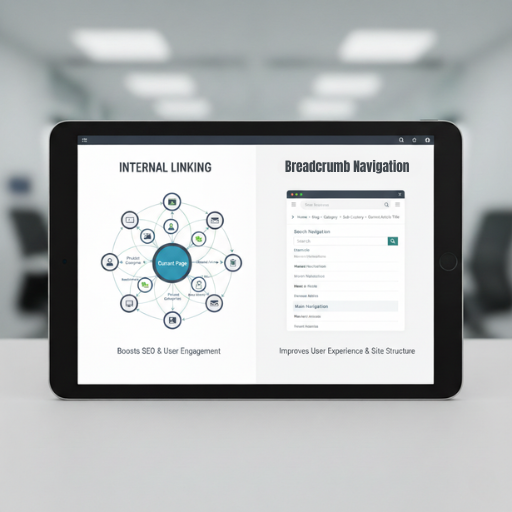
4. Internal Linking Suggestions
Yoast’s internal linking tool recommends related pages to link to while editing posts. Internal links improve:
- Navigation for users.
- SEO, by distributing link equity across pages.
Pro Tip: Use anchor text that describes the linked page for better rankings.
5. Breadcrumb Navigation
Breadcrumbs help users and search engines understand your site’s structure.
How to enable breadcrumbs in Yoast:
- Navigate to SEO > Search Appearance > Breadcrumbs and toggle it on.
- Insert the breadcrumb code into your theme files if needed.
Tips to Maximise Results
- Track Performance: Use tools like Google Search Console and Google Analytics to track ranking improvements.
- Update Content Regularly: Refresh outdated pages and fine-tune underperforming keywords using Yoast’s analysis.
- Explore Yoast Premium: Upgrade for features like multiple focus keywords, advanced internal linking suggestions, and automated redirects.
- Don’t Skip Great Content: While Yoast is a powerful tool, it works best in conjunction with valuable, high-quality content.
Common Issues and Fixes
Even with its strengths, Yoast users may occasionally face issues. Here’s how to fix them:
- Problem: Yoast isn’t generating sitemaps.
Fix: Recheck your settings under SEO > General > Features to ensure the XML sitemap is enabled. Reset permalinks if necessary. - Problem: Meta titles or descriptions aren’t displaying correctly.
Fix: Ensure titles/descriptions are configured properly in Yoast and aren’t being overridden by theme settings. - Problem: The plugin conflicts with other tools.
Fix: Double-check for compatibility issues by disabling plugins one by one to identify the culprit.

FAQs About Yoast SEO
- Is Yoast SEO free?
Yes, the basic version is free and includes most features. Yoast Premium offers advanced functionality like multiple focus keywords and automated redirects. - Can I use Yoast SEO on an e-Commerce website?
Absolutely! Yoast integrates seamlessly with WooCommerce for product optimization. - Does Yoast guarantee higher rankings?
Yoast helps improve on-page SEO, but rankings also depend on external factors, like backlinks and competition. - How do I optimize a blog title using Yoast?
Make sure your target keyword appears at the start of the title and keep it under 60 characters. - What’s the difference between free and premium?
Premium provides advanced features like multiple keywords, redirect management, and priority support.
Conclusion
Yoast SEO is more than just a plugin; it’s your all-in-one toolkit to simplify on-page optimization and boost your website’s search engine performance. Whether you’re managing a blog, an e-Commerce store, or a business website, Yoast makes implementing best practices more approachable.
Ready to transform your rankings? Install Yoast SEO today and start optimizing your site like a pro! Need help getting set up? Contact Us for expert assistance.